You can only pay an invoice through the portal if your vendor has enabled this feature for you.
Note: This article is for customer management users...
Now, let's get started:
From the portal home page, click on the Details link under the See Details Tab:

Now, click on the Invoices tab at the top:

Find the invoice you want to pay and click the Pay link for that invoice. (if you do not see the Pay link for an invoice that has a balance greater than 0, that means your vendor has not configured your account to allow paying invoices with a credit card.)

At this point, the payment screen will look different based on whether or not you have set up a default credit card to use in the portal.
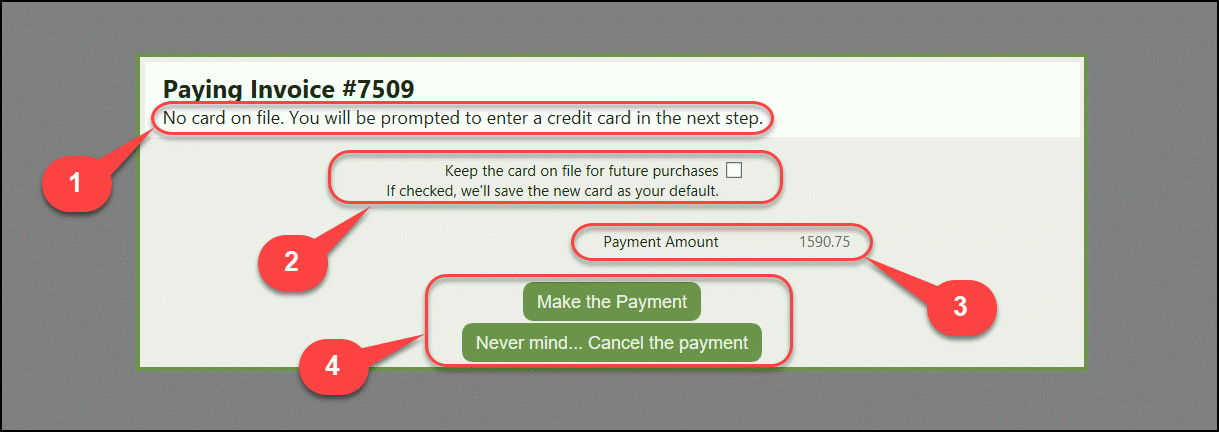
A. If you DO NOT currently have a credit card on file, the following screen will appear and there are a few things to notice:
-
You have not previously set up a default credit card to be used in the portal. You will be asked to enter credit card info for payment on this invoice, and you can choose to save that credit card as the default for future payments.
-
Check this box if you want your new credit card information to be kept on file as your default form of payment. (if you don't want credit card information stored, continue without checking the box).
-
Payment Amount. This cannot be changed. You must pay the entire invoice balance when paying via the portal.
-
Payment buttons...to pay or cancel transaction. When you click the Make the Payment button, you must complete the credit card information form and hit the Pay button.
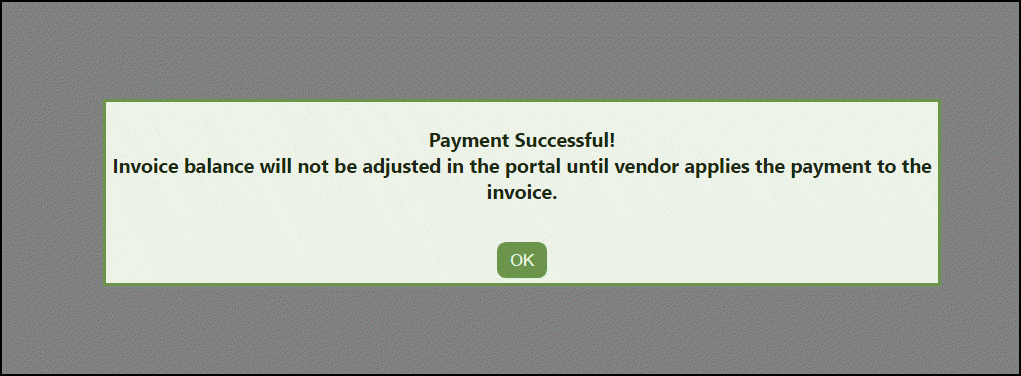
Finally, a status window appears letting you know that the payment was successful, or if it wasn't you will be notified of the reason.
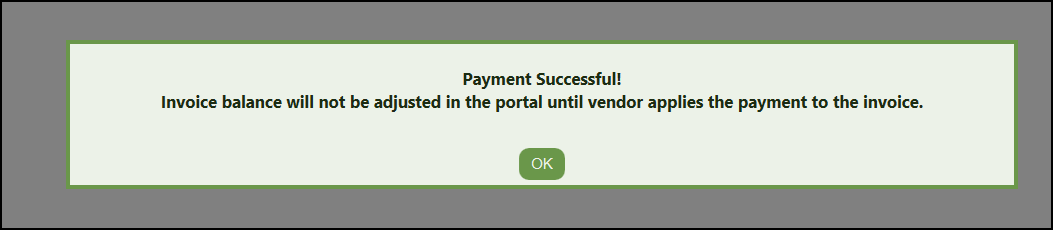
Note: The invoice balance in the portal will not reflect your payment until after your credit card payment has been applied in the vendor's billing system. If you try to pay this invoice through the portal again before the balance is updated, the portal will not allow that.
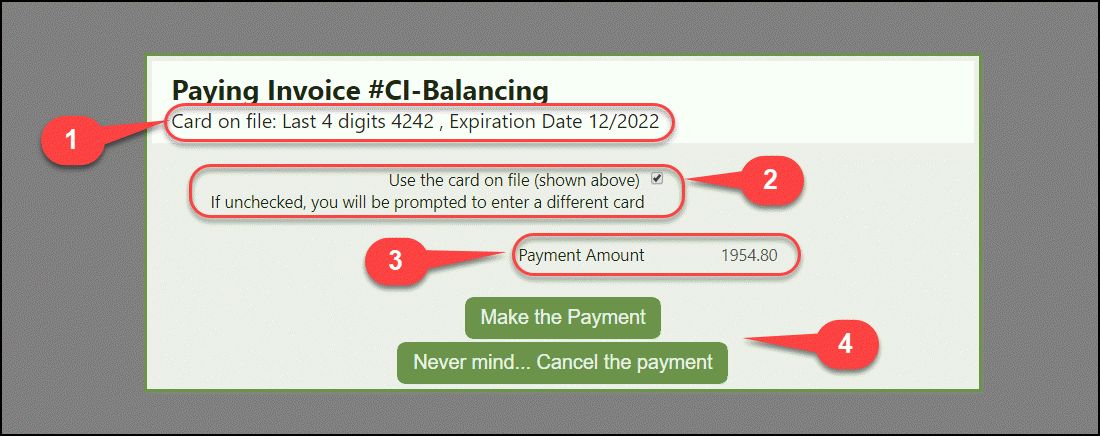
B. If you CURRENTLY have a credit card on file, the following screen will appear and there are a few things to notice:
-
This is information about the default credit card you currently have on file in the portal.
-
Uncheck if you would like to use a different credit card. If you choose to use a different card, a new checkbox will appear giving you the option to replace the default card on file with the new credit card.
-
Payment Amount. This cannot be changed. You must pay the entire invoice balance when paying via the portal.
-
Payment buttons...to pay or cancel transaction. When you click the Make the Payment button, if you have chosen to use a different credit card, the portal will prompt you to enter the credit card details for the new card.
Finally, a status window appears letting you know that the payment was successful, or if it wasn't you will be notified of the reason.