This article is for Customer users.
Log into Crik-it.net portal using your Customer Management user-name (not your staff user-name...forget the difference? click here...).
From the Crik-IT Main Page, click on the Balance amount, shown in blue and underlined.

Next, find the invoice you want to print. You can use the Search tools (circled in blue below) to find the invoice if it isn't immediately visible on the screen. Once you find the invoice, click on the picture of the printer (circled in red below) to preview the invoice.
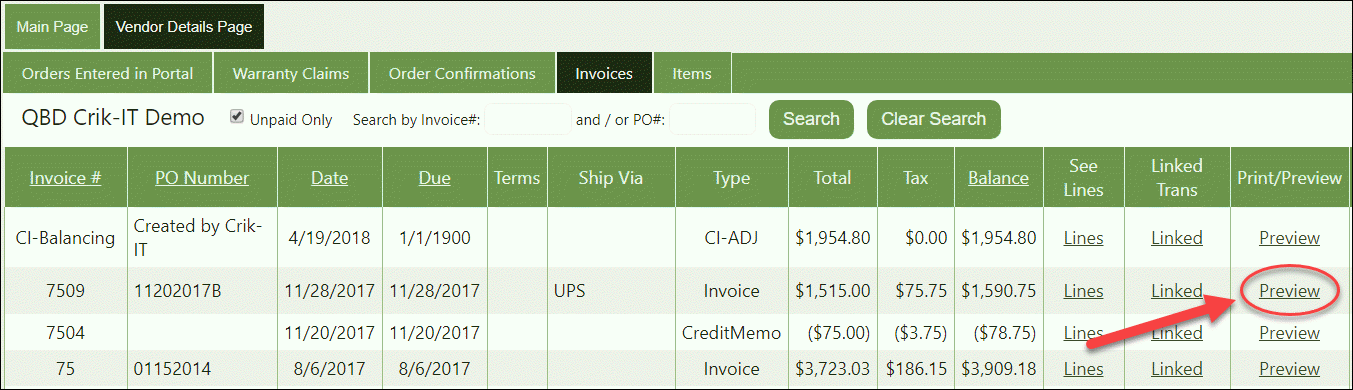
The invoice will be shown in the Preview page, as shown below. To print it, click on the picture of the printer, then on the PDF option (outlined in red below).
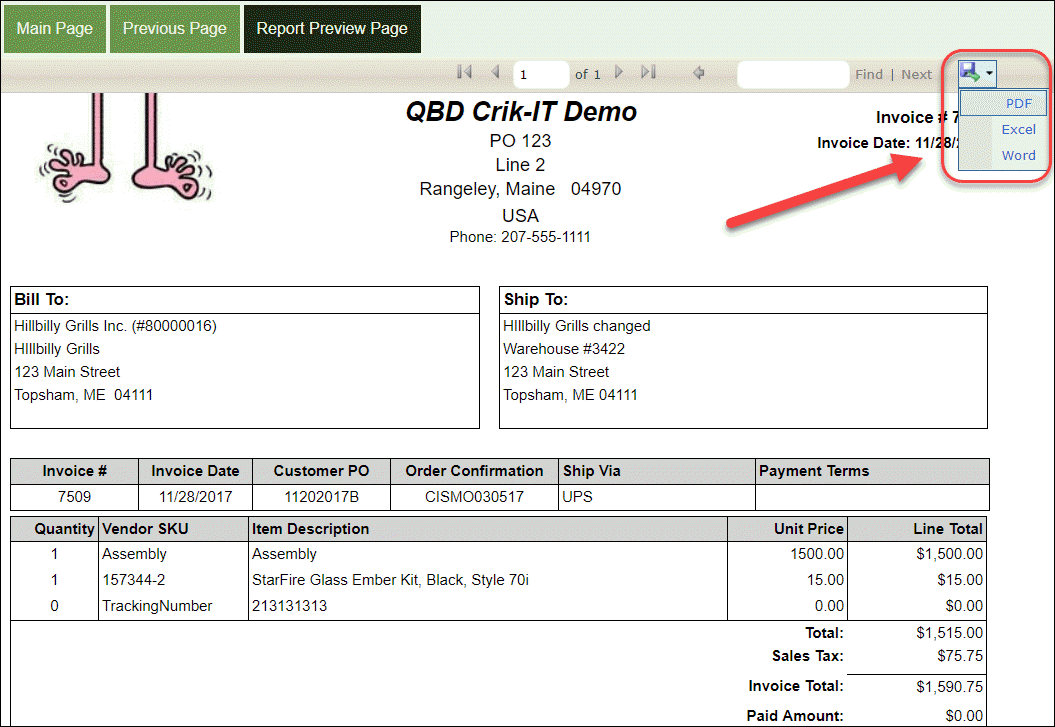
Depending on what browser you use, and on the configuration settings of your computer and browser, a PDF version of the invoice will either open or be downloaded to your computer (or you may be asked which option you choose). If downloaded, go ahead and open it. Once opened, you can print the invoice from there.