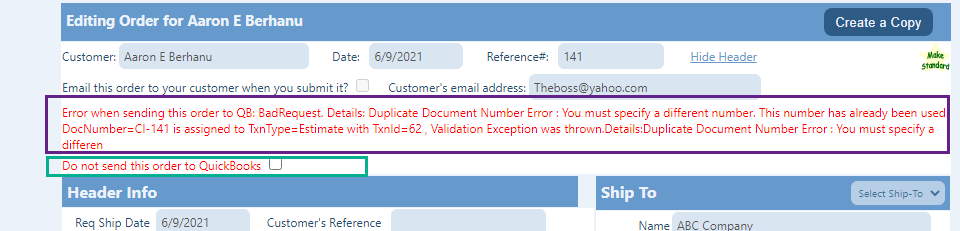
Occasionally, when the Crik-IT portal attempts to send an order to your QuickBooks system, QuickBooks may return an error. In this case, your order desk email address(es) will receive an email alerting them of this. You can learn more about this here.
Your team may decide to enter the order into your QuickBooks system manually rather than addressing the underlying issue. In this case, since the order has been entered manually into your QuickBooks, you will need to tell the Crik-IT portal to stop trying to send the order automatically from Crik-IT to QuickBooks. Here's how to do this.
- Log into Crik-IT as an in-house user.
- From the Customers tab, find the customer the order is for, and click on the customer name to drill down into their details.
- Click on the Orders Entered in Portal tab.
- Find the order having the error, and click on the Edit link for that order.
- There will be red text showing the error message returned by QuickBooks (outlined in purple below). If the error message is too long, it may be truncated.
- Below the error message, there will be a checkbox with red text saying "Do not send this order to QuickBooks", outlines in green below. Check that checkbox. Note that you will not be able to undo this action, so make sure the order has been entered manually into QuickBooks.