Some of Crik-IT's sales reports ("Sales Year Over Year" and "Monthly Sales With Customer Visit Stats") show actual versus target information. This article explains how to enter target information into Crik-IT so that info appears on the reports.
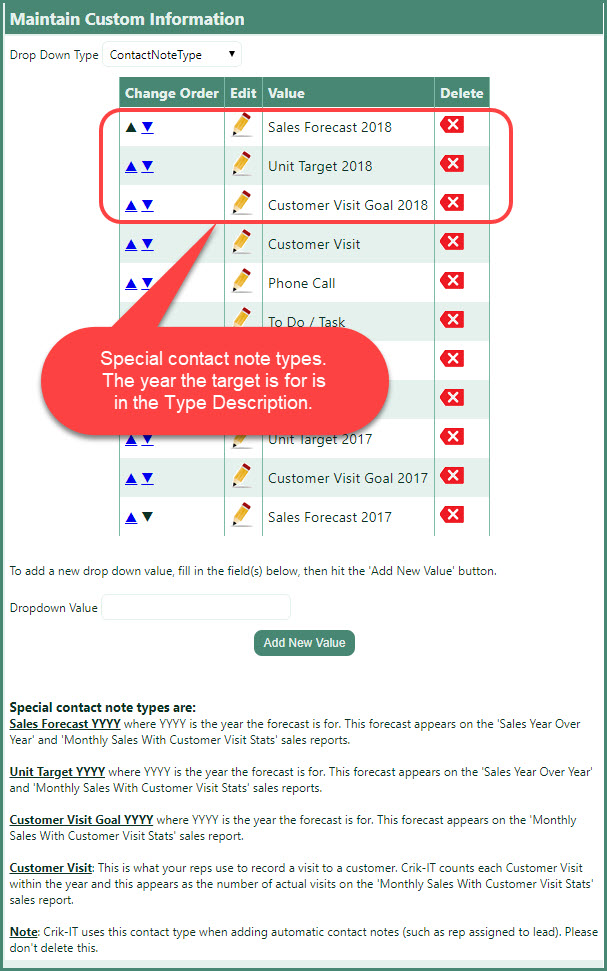
The general idea is that targets are entered as special contact notes. In the Tools tab, Maintain Drop Down Values, you can set up the special contact note types for targets you want to use. Note that the bottom of the Maintain Drop Down Values page shows more information about the special contact note types, including which report(s) the special contact note type will appear on.
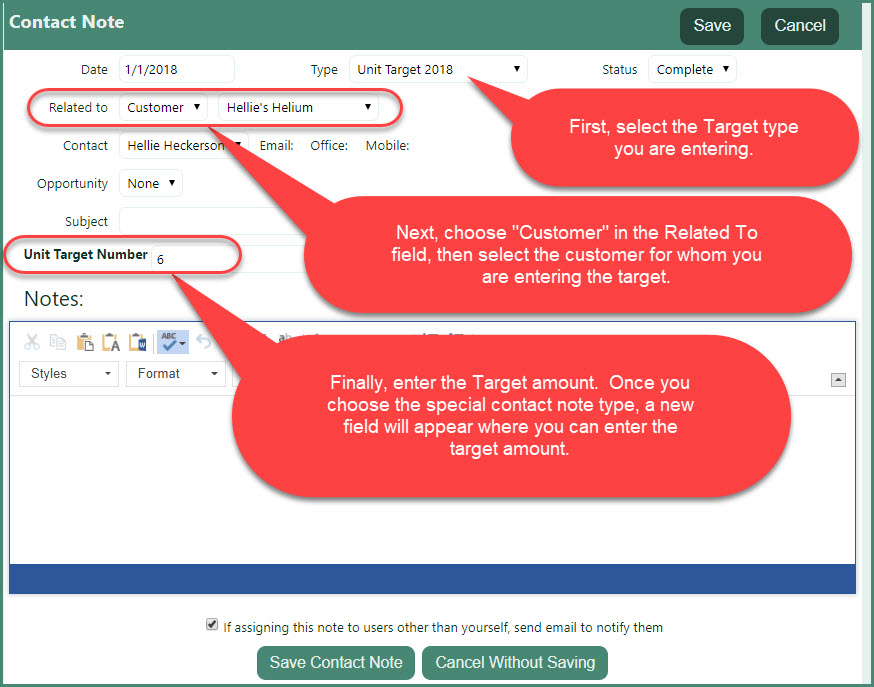
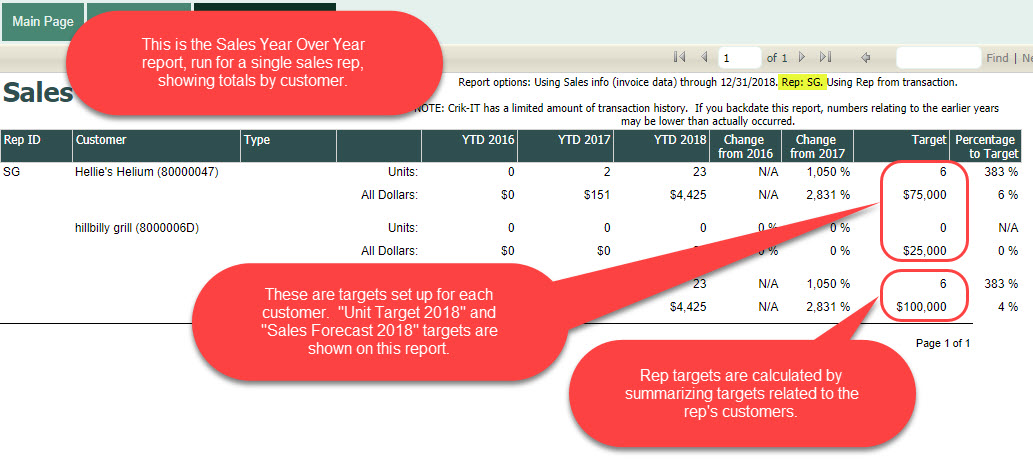
Once you have set up the special contact note type(s) for targets you want to use, the next step is to enter contact notes to set the targets. You set the target at the customer level. When you run reports by customer, the targets you have set up for each customer will appear on the report. When you run reports by rep, the report will calculate the rep's target as the summary of the target set up for each customer assigned to the rep.
Here's a sample Sales Year Over Year report showing targets.
A quick note about tracking Customer Visits: The goal for the year is entered using contact note type "Customer Visit Goal YYYY", where YYYY is the year the goal is for. Then, as your reps actually visit the customer, s/he will enter a contact note with type "Customer Visit" and record any notes about that visit. The "Monthly Sales With Customer Visit Stats" will calculate the actual number of visits by counting the number of contact notes with type "Customer Visit" for that customer in that YYYY year.
Give it a try!
Got questions? Open a support ticket and we'll get back to you ASAP.