Crik-IT has two different Order Entry methods. This article covers the method used by most Crik-IT subscribers. Not sure if this is the method you use? Click here for help determining this.
Now let's get started on how to create a Purchase Order...
**Your screen may look a bit different than this, depending on how your vendor has configured Crik-IT.**
OK, from your Main Page, click on the Customers tab, find the customer your entering the order for, and then click on the Enter Order link under the New Order tab

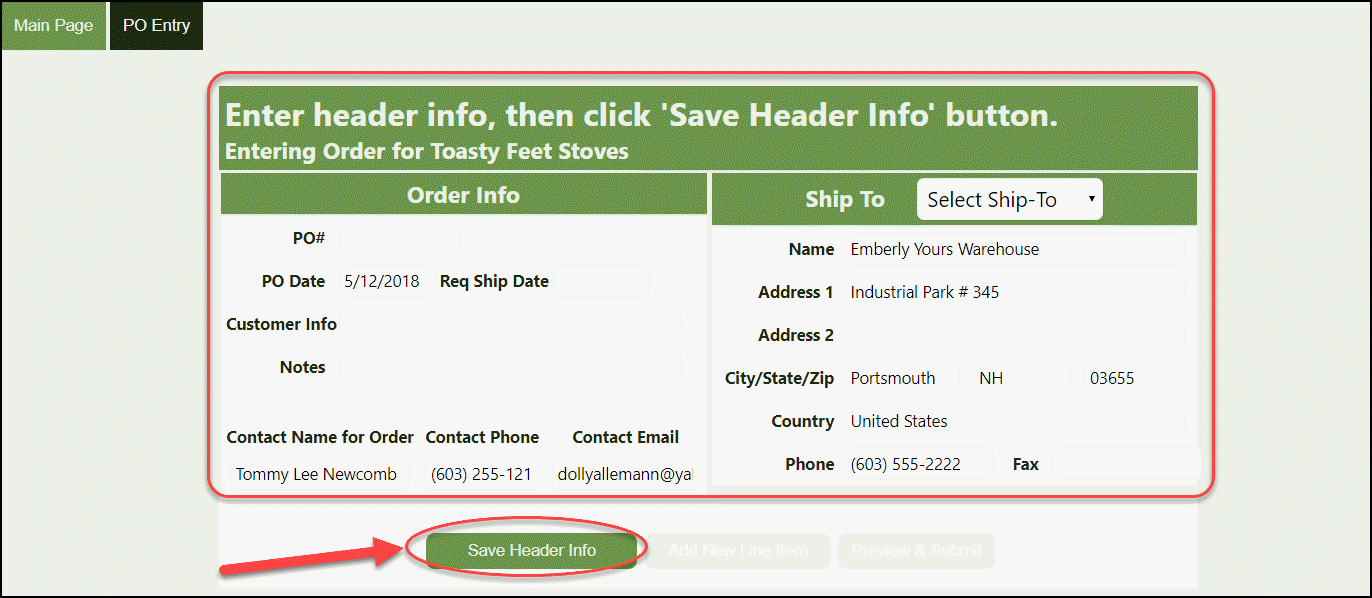
Complete the form on the PO Entry page and click the Save Header Info button
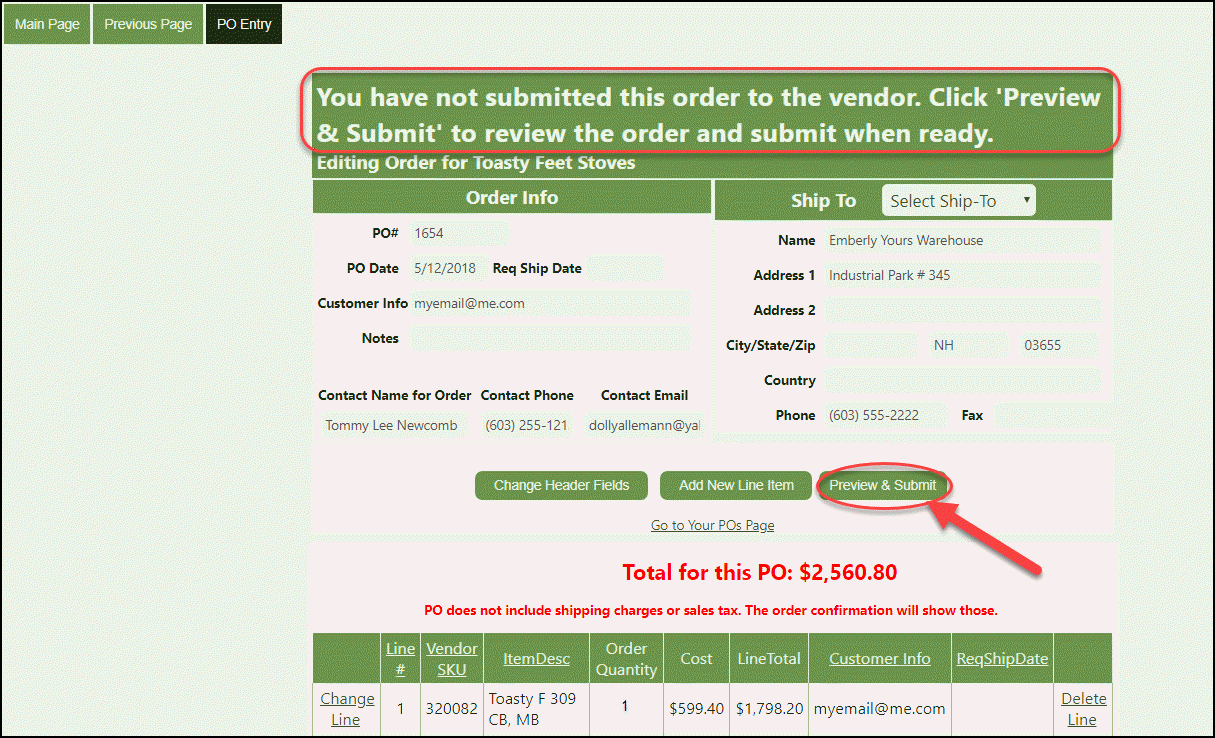
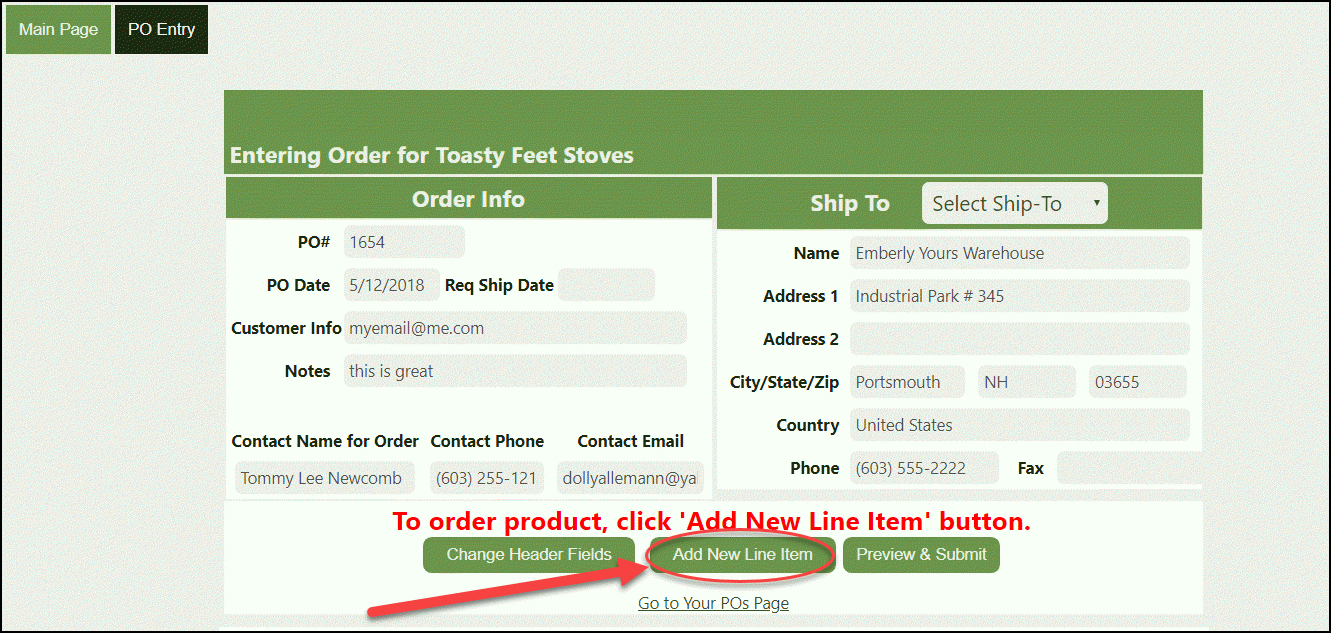
After saving the header info, to specify what you want to order, click on Add New Line Item button
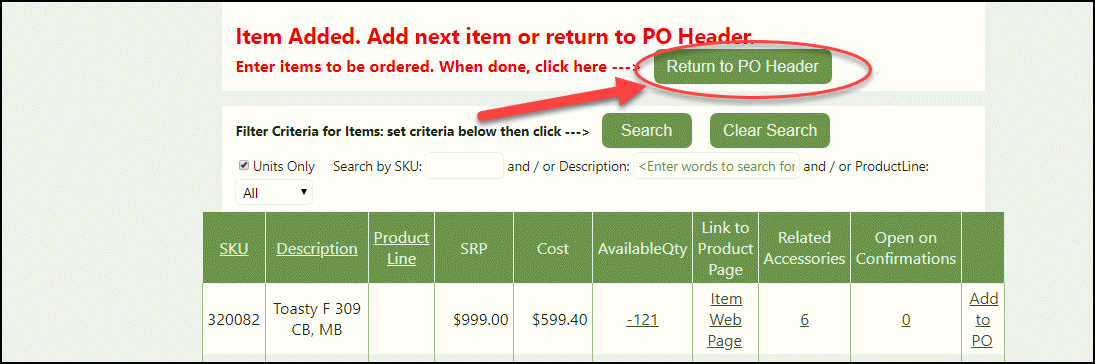
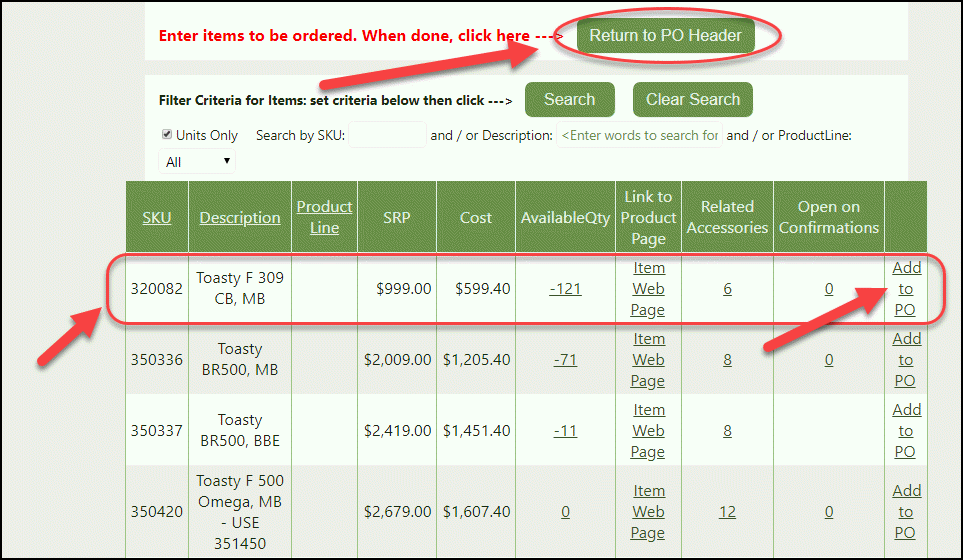
Here you'll see items listed and you will be able to click the Add to PO link to the far right of the item of your choice and click the Return to PO Header button.
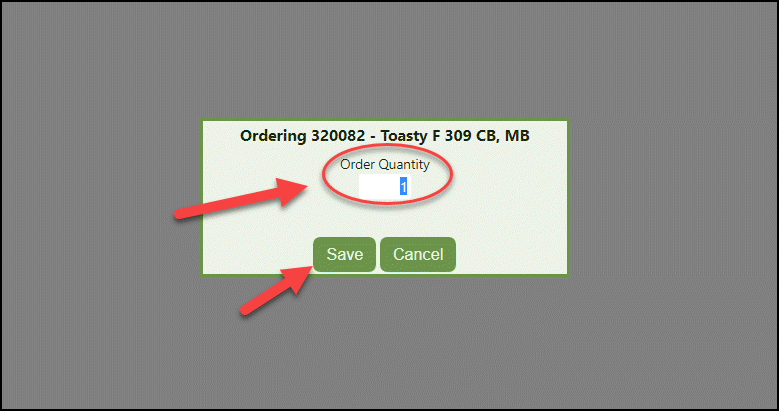
Now enter the quantity, then click Save.
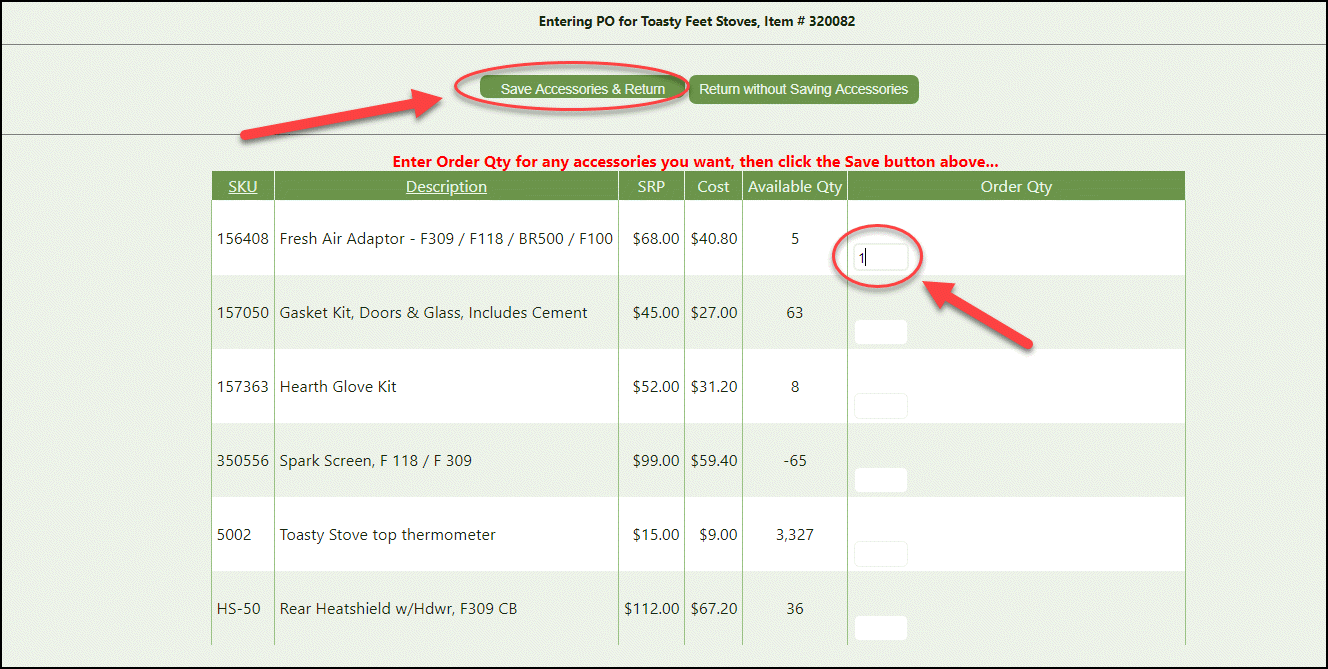
Crik-IT is smart... it knows that the item you are ordering has accessories related to it, so Crik-IT now gives you the opportunity to order some of those accessories. Enter the quantities you need, and click on Save Accessories & Return (circled below). If you don't need to order accessories, click instead on Return Without Saving Accessories.