This article is for subscribers running their business on a QuickBooks desktop version (Pro, Premier, or Enterprise).
Do you have an order that was entered in Crik-IT that isn't showing up in QuickBooks? Here are some things to check...
First, make sure the order has been submitted:
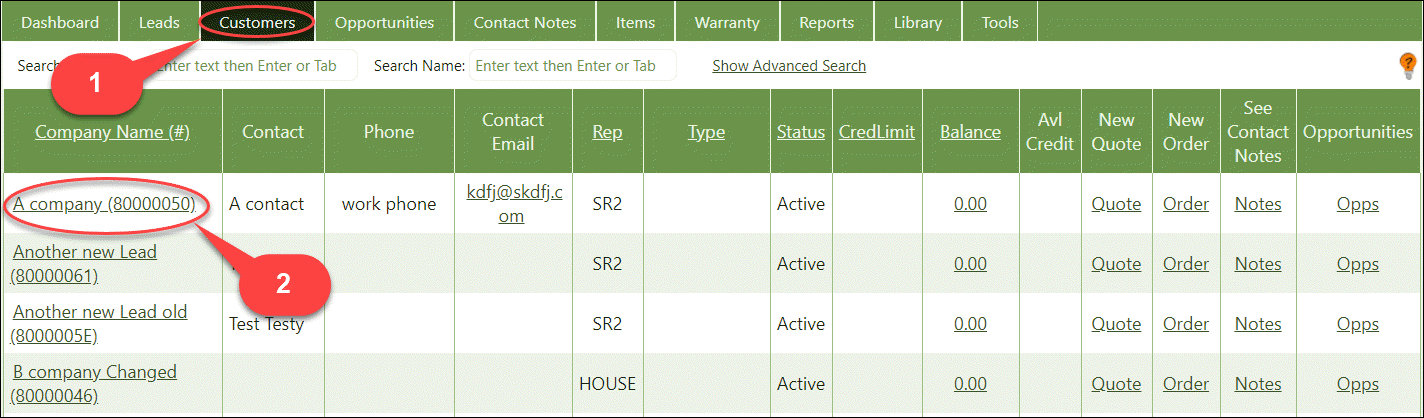
1. Go to your Customers tab on the Crik-IT Main Page.
2. Find the customer that the order is for, then click on the customer's name to drill down into their details.
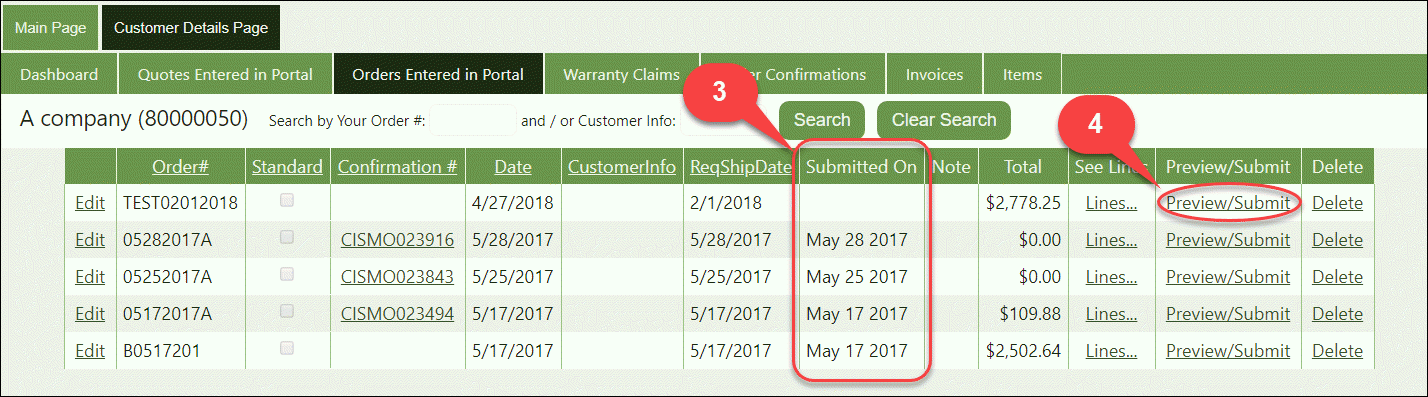
Click on the Orders Entered in Portal tab.
3. Submitted On column - If there is no date in the Submitted On column, this order has not been submitted.
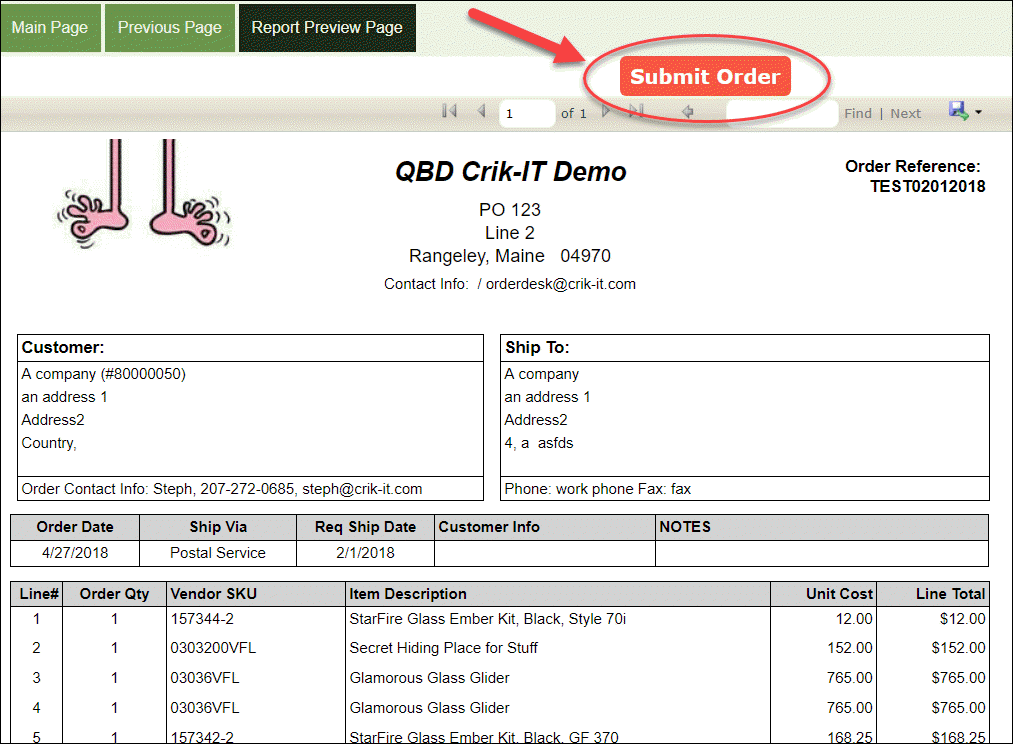
4. To submit hit the Preview/Submit link and then click on the "Submit to Vendor" button at the top of the page.
Submit order:
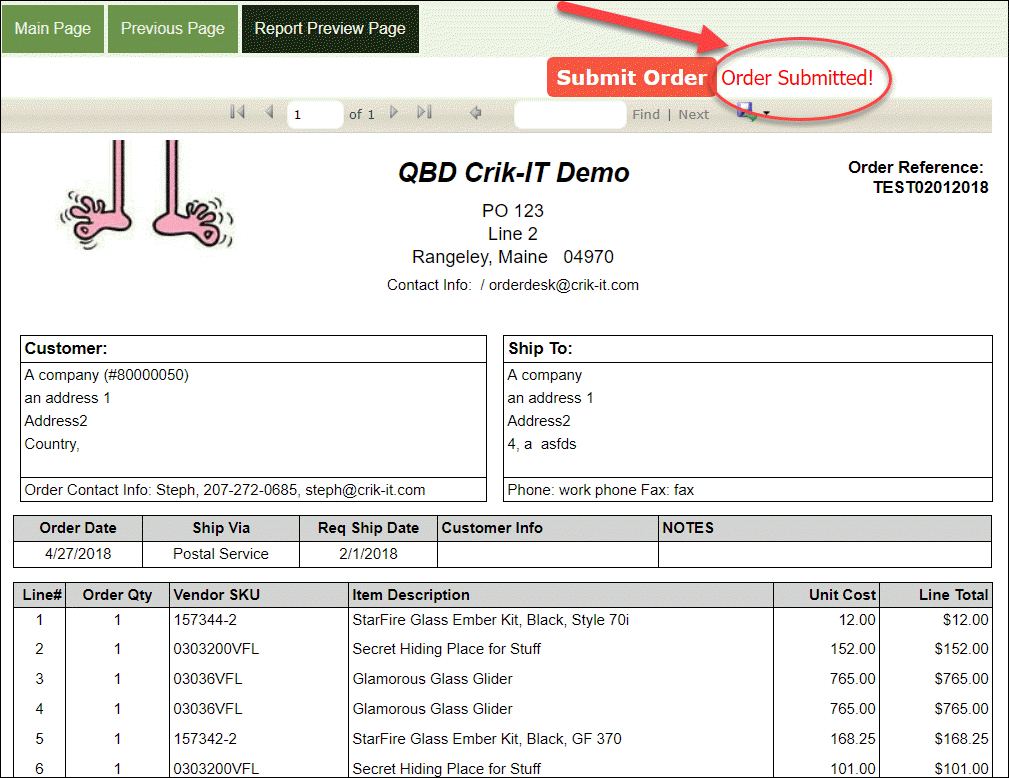
Order confirmation:
If you see a message saying there was a problem, submit a ticket telling us the nature of your issue, the customer name, and order number so we can check things out.
Once you submit it, within 5 minutes Crik-IT will send that order to your CISM sync cloud. The next time your CISM Sync Manager runs, that order will be put into your QuickBooks system as a Sales Order.
If the order has already been submitted...
First: Has your QuickBooks sync manager run successfully since the order was submitted?
-
If it has been more than 5 minutes since the order was submitted in Crik-IT, make sure that your CISM sync manager has run since the order was submitted. Take a look at this article to help with CISM issues.
-
Still not showing up even though your CISM sync ran successfully? Submit a ticket telling us the nature of your issue, the customer name and order number so we can check things out.
Second: Does the order have a negative price on any item that is set up as an inventory or assembly item in your QuickBooks system?
-
QuickBooks does not allow negative prices on inventory or assembly items. Having negative price for an inventory or assembly item will prevent QuickBooks from importing the sales order from Crik-IT. It is OK to have negative price for items set up as Other Charge in QuickBooks. (Note: Some of our subscribers use an Other Charge item to add a discount line item to an order in Crik-IT.)
-
If you can't enter a negative price on a line when entering an order in Crik-IT, that's probably because your Crik-IT hasn't been configured to allow this. Click here to learn more about this.
-
If your Other Charge items in QuickBooks aren't showing up in Crik-IT, it's probably because you haven't configured your Crik-IT to bring those items in. Click here to learn how to do this.
Third: Is the Order total a negative amount?
-
QuickBooks does not allow sales orders with a negative total amount to be saved. If your Crik-IT order total is a negative amount, this will prevent QuickBooks from importing the sales order from Crik-IT. It is OK to a line item with a negative amount as long as the TOTAL for the entire order is not negative. (Note: Any lines that contain a negative price must not be for items that are set up in your QuickBooks system as an Inventory or Assembly item.)
Fourth: Is your QuickBooks configured to NOT allow negative inventory quantities?
-
If so, and if this order would result in a negative quantity, Intuit will prevent the order from being synced to your QuickBooks.
Fifth: Are all the items on the Crik-IT order still set up as items in your QuickBooks system?
-
It is possible that an item in QuickBooks has been deleted, or someone may have changed the item name, and those changes may not have been sent up to Crik-IT yet. In that case, the Crik-IT order may have an item on it that doesn't match an item in your QuickBooks system. This will cause the sync to fail.
Sixth: Is there a modal dialog window open in your QuickBooks system? Check this article for more info.