The Crik-IT Sync Manager (CISM) uses a tool called the QBSDK to read and write data to QuickBooks desktop. The QBSDK is provided by Intuit to 3rd party app developers, like Crik-IT, to control how and what data in QuickBooks is accessed by CISM. Occasionally, when CISM syncing isn't operating as expected, our development team may need to access detailed logs created by the QBSDK. When this happens, we may ask you to enable "verbose" QBSDK logging, or, if you prefer, we can set up a time to work with you to do this.
Note: the QBSDK log file is created by QuickBooks. Setting up this log (QBSDK.LOG) requires a higher level of technical ability than some users may have (we're happy to help, if you like).
Here's how to enable verbose logging for the QBSDK. These steps may require Windows Admin level privileges.
Important: do this in coordination with Crik-IT support. We will have to be involved so we can capture the log files immediately after the following steps are done, before the logs get overwritten by a subsequent CISM sync cycle. (Update: if on the most recent version of the CISM syncer, the files don't get overwritten.)
On the machine where CISM is installed:
1. Stop CISM from running and close the CISM program.
2. If QuickBooks is running on the CISM machine, close it.
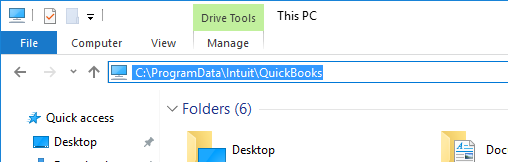
3. Using File Explorer in Windows, open the C:\ProgramData\Intuit\QuickBooks folder. Tip: you can use %programdata% shortcut in case your version of Windows stores this file elsewhere.
Note: The ProgramData folder is usually hidden, so you may need to copy/paste the above location into the Address Bar (shown below)
4. Open the QBSDK.ini Configuration settings file in Notepad.
Note: If the QBSDK file doesn’t exist, create a new Text document and name it QBSDK. You’ll need to enable “File name extensions” on the View tab to change the file name from txt to ini.
5. Copy/Paste the following lines into the QBSDK.ini file, or update the existing values. Do not replace any other information in the file.
[Log]
Level=verbose
UnlimitedSize=N
[Parser]
DumpRequestData=Y
SdkAccelerator=N
6. Start QuickBooks on this PC.
7. Let Crik-IT Support know that we're ready to start running the test sync cycle.
8. When Crik-IT Support gives the go-ahead, start up CISM. Crik-IT support will monitor the syncing and will capture the appropriate log files immediately after the sync (note: CISM automatically uploads the log files to the CISM cloud).