Some companies get a message like the following, even if QuickBooks is open:
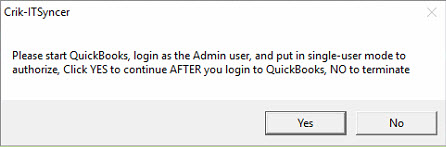
... When Yes is clicked, you may get a message like this:
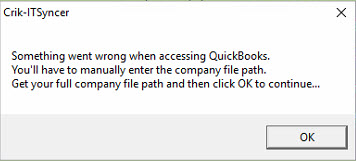
When you click OK, you will be asked to enter your company file path. Here's how you get this.
If QuickBooks isn't already running, open it.
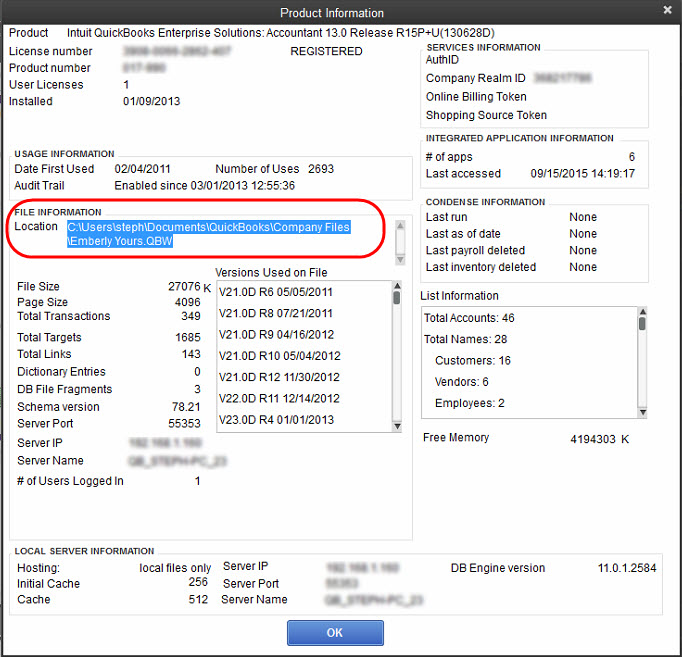
From the QuickBooks main screen, click the F2 button to get to the Product Information screen. From there, select and copy the File Information Location, as circled in the screenshot below.
Note: Make sure to click the OK button to close this screen when you have copied the file location. If you don't CISM will not be able to access QuickBooks.
Next, paste the file location path that you copied above into the CISM window requesting this information... like this:
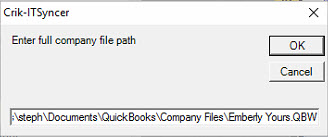
Then click OK. Next, QuickBooks should pop up a screen like this one, asking if you give CISM permission to access your data. Fill in as shown below (Yes Always, and login as Admin), then click Continue.
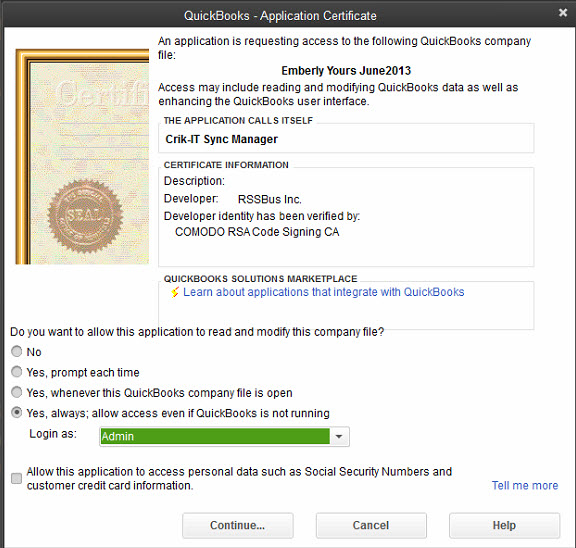
A confirmation screen appears. Click Done to close this window. It is very important to close these windows so CISM will be able to access your company file.
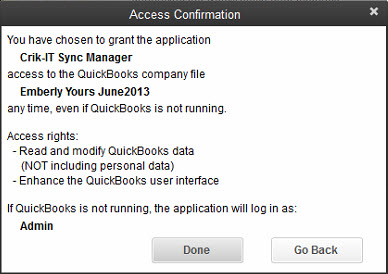
That should do it. If you continue to have issues, open a support ticket and we'll set up a remote session to get you going.