Do you have customers with different Ship-To Addresses you'd like to have set up? Crik-IT can help out! Here's how to set it up...
-
Log into Crik-IT.
-
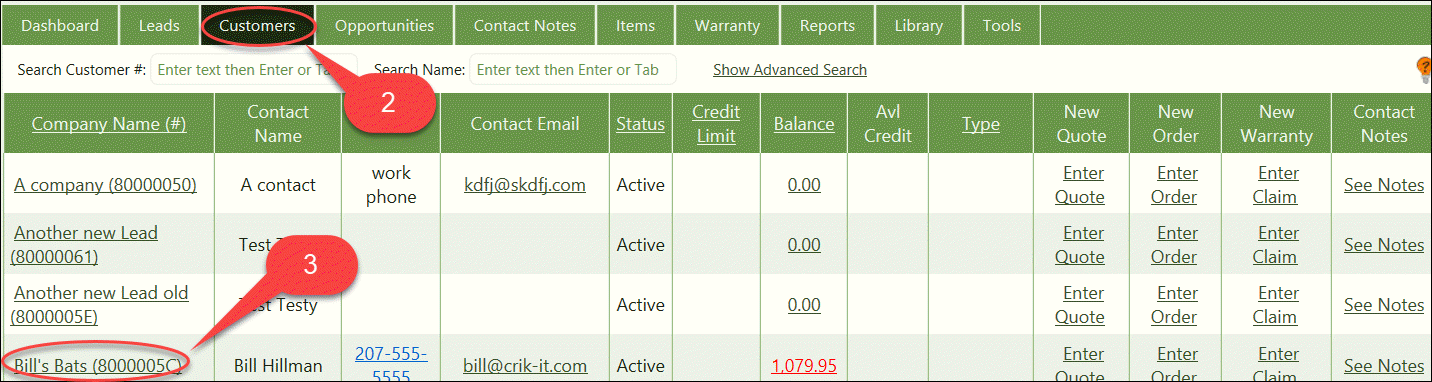
From the Crik-IT Main Page, click on the Customers tab.
-
Find the customer for whom you want to set up ship-to addresses and click on the Company Name.
Note: Your screen may look a little different than this, depending on how your vendor has configured Crik-IT.
4. You will be put into the customer Dashboard
5. You'll see the Customer Name in a drop down box on the top left portion of the dashboard.
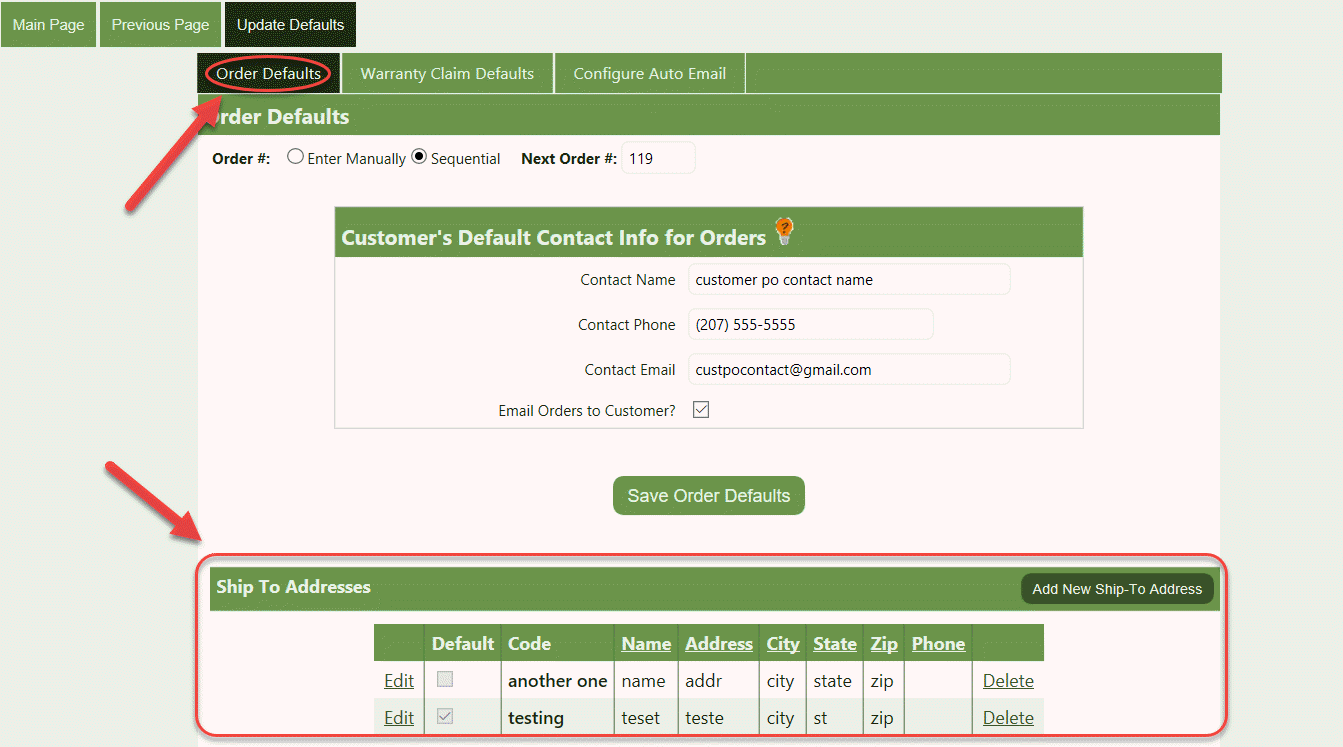
6. Click on the Customer Settings link to the right of the name and it'll take you to the Orders Default page.

On the bottom part of the screen, you can add, change or delete ship-to addresses. AND, you can select which you would like to use as the default ship-to address.
The addresses you add here will show up in the drop down Select Ship-To field on your Order Entry Screen.