We can accommodate!
Crik-IT can be configured to automatically assign a sequential number as the order reference number. NOTE: Crik-IT tracks order sequence numbers for each customer.
If you choose this option, Crik-IT keeps track of the next Order number and automatically assigns that number to a new order. (You will not be able to change the Order number if you opt to have Crik-IT assign it!)
To change the Order number setting...
-
Log into Crik-IT using your In-house or Rep user name.
-
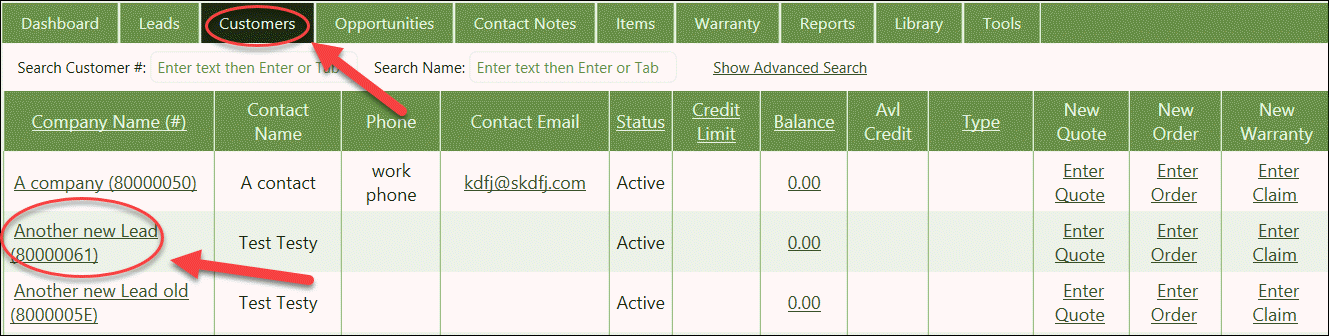
From the Crik-IT Main Page, click on the Customers" tab. Then find the customer you want to change defaults for and click on their Company Name (see screenshot below).
Note: Your screen may look a little different than this, depending on how your vendor has configured Crik-IT.
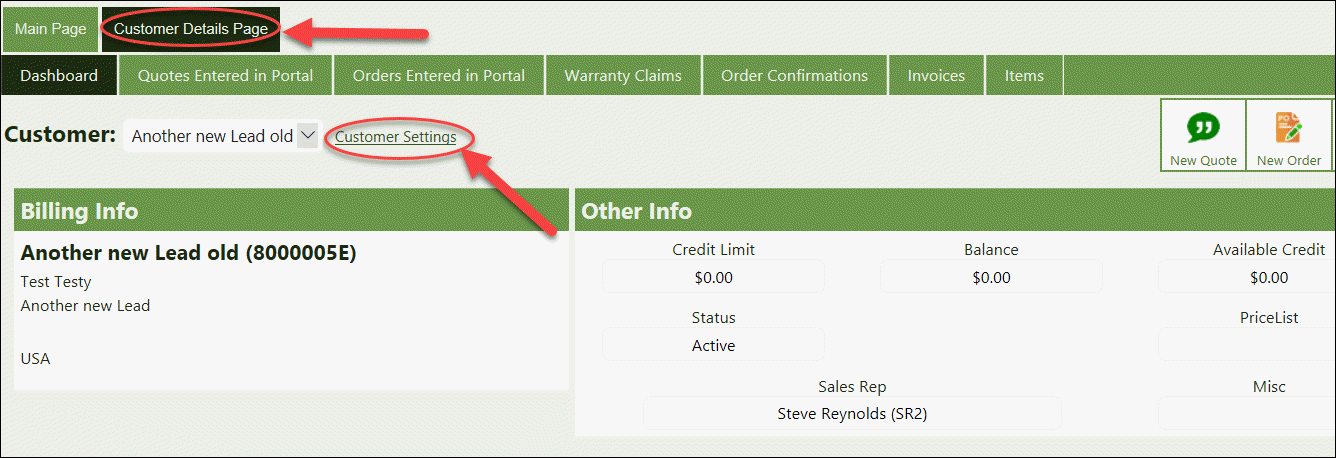
Now, see that Customer Settings next to the Company Name? If you click on that, it'll take you to the Orders Default page.
At the top of the Order Defaults section, you have two choices for the Order #: 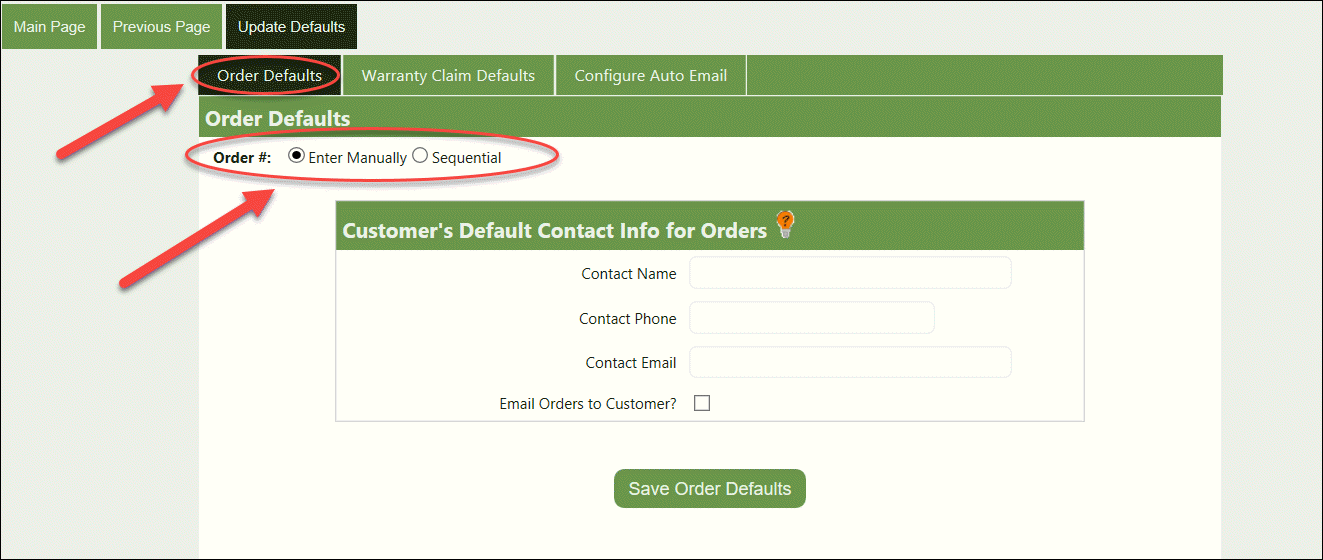
-
Manually: if you choose this option, you will have to enter the order reference number each time you enter an order. Note: Crik-IT requires that the order reference number be unique for a customer.
-
Sequential: if you choose this option, Crik-IT will automatically assign a sequential number to a new order. You will be able to enter the starting number in the Next Order # field. Note: this field only appears once you have selected the Sequential option.
Don't forget click the "Save Info & Return" button!
Your own information will show on each order as the default contact info.
-
Contact Email: The customer's Contact Email will show as the default Email address if emailing a copy of the order to the customer.
-
You'll be able to say if copies of the order should be emailed to the customer upon submission of the order.
Change the info as you like, then click the Save Info & Return button.
The next time you enter an order, these defaults will be used.