Now that you've linked Crik-IT to the Stripe credit card processing engine, you have to tell Crik-IT which customers you would like to be able to make credit card payments in Crik-IT. Here we go...
Note: Only In-House users have access to make this change in your portal. Customer must be set up as a Crik-IT user in order for payments to be made via Crik-IT (even if a Rep or In-House user want to enter a payment on customer's behalf.)
To start the process, login to the Crik-IT portal as an in-house user, then click on the Tools tab.
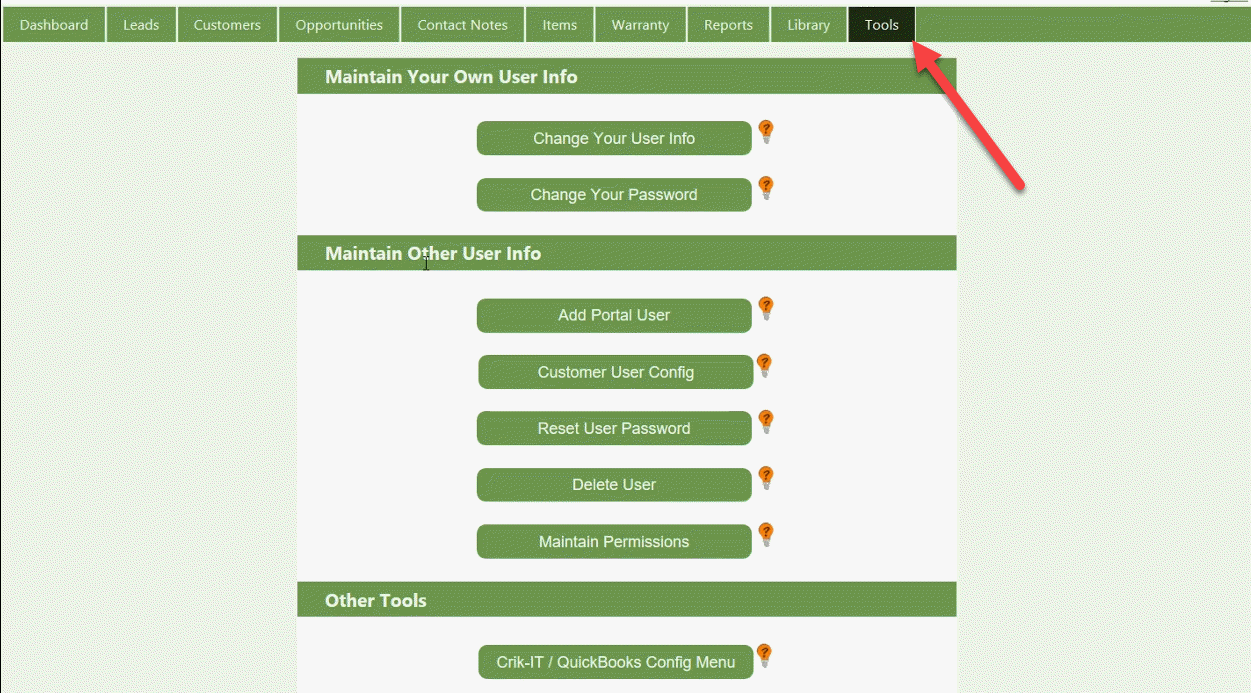
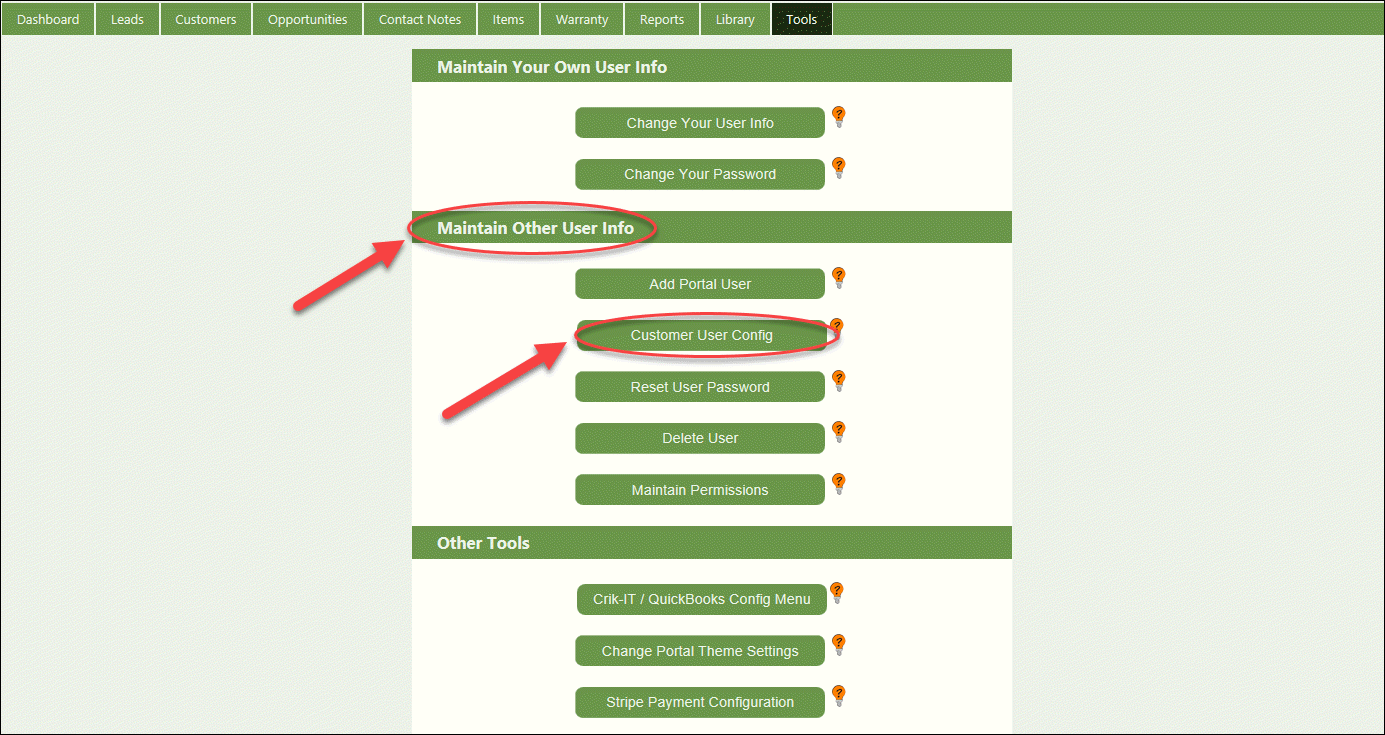
Look under the Maintain Other User info section and click on the Customer User Configuration button:
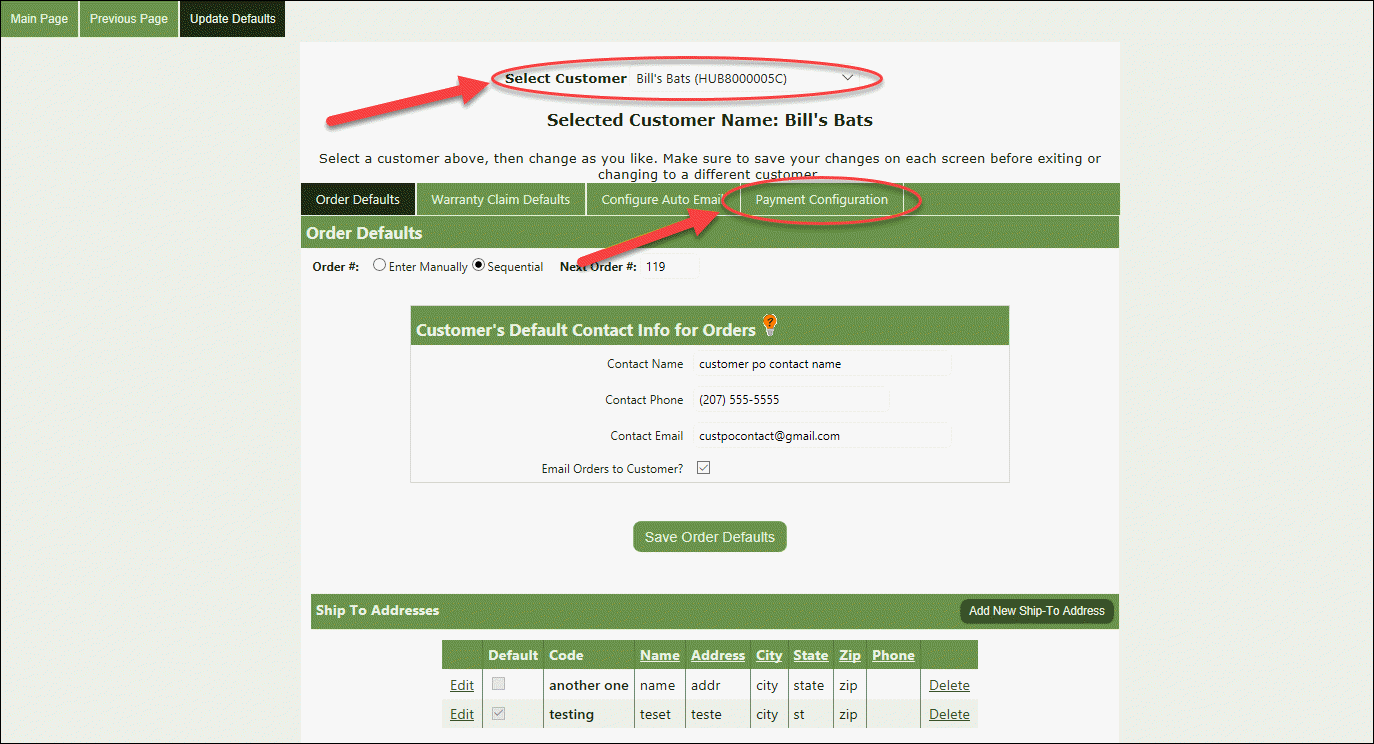
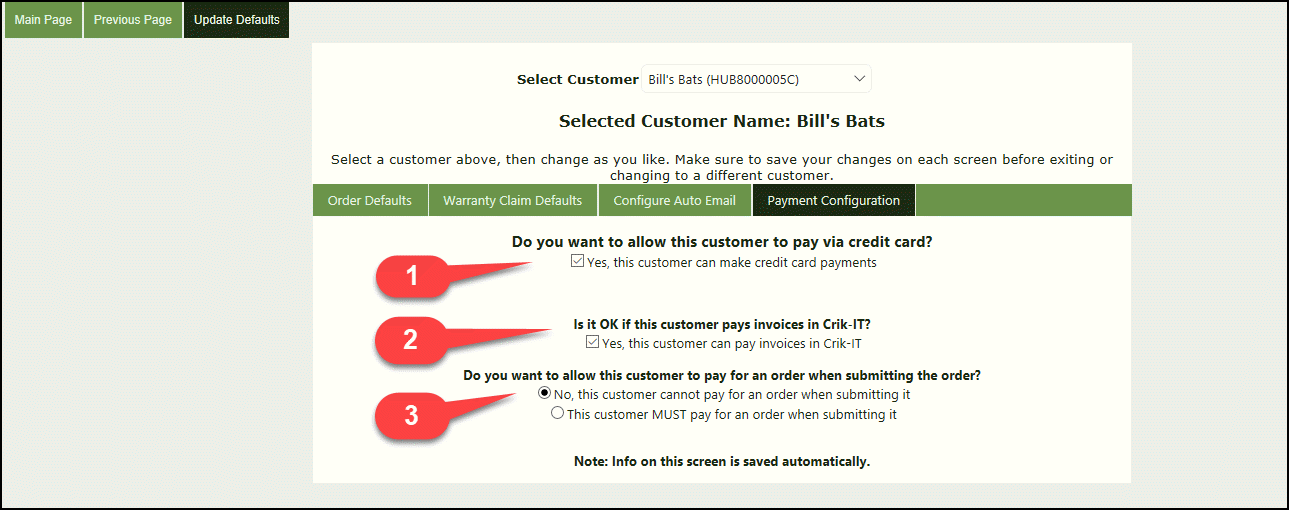
Now from the Update Defaults page, you will select the customer from the dropdown menu at the top and then click on the Payment Configuration tab:
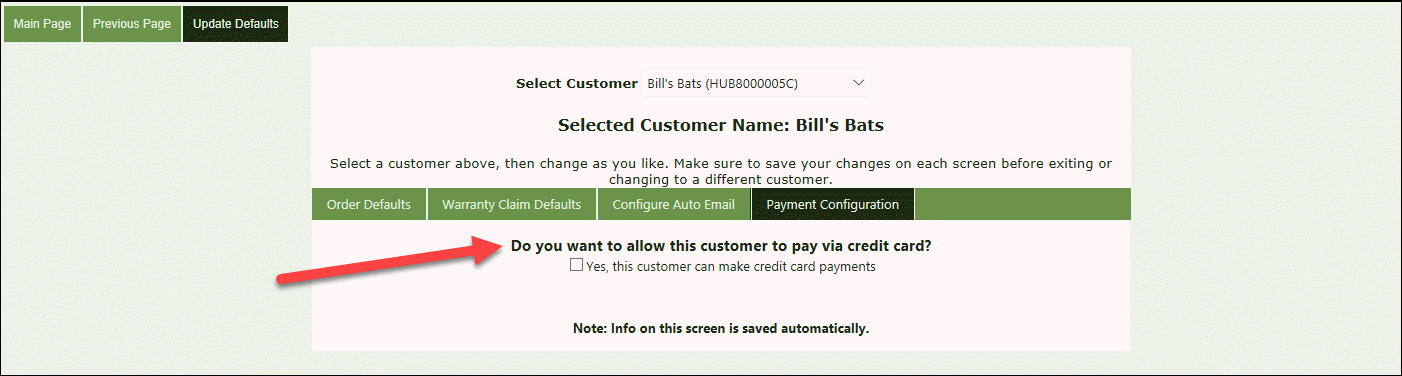
Click the box under Do you want to allow this customer to pay via credit card.
1 - Check box to allow this customer to submit payment via credit card at all in the Crik-IT portal. Once you click this, you will be given a couple more options to fine-tune payment configuration for this customer.
2 - Pay Invoices: Check box if it is OK for this customer to pay invoices in Crik-IT. If checked, there will a Pay link on the customer Details->Invoices tab so the invoice balance can be paid with a credit card.
3 - Pay for Order: You have a choice here, either NOT to allow a customer to pay for order when submitting or customer MUST pay when submitting order (for example, if a customer is a credit risk, Crik-IT can be configured to REQUIRE that the customer pay for the order at the time of submission.)
Any questions? Contact us!