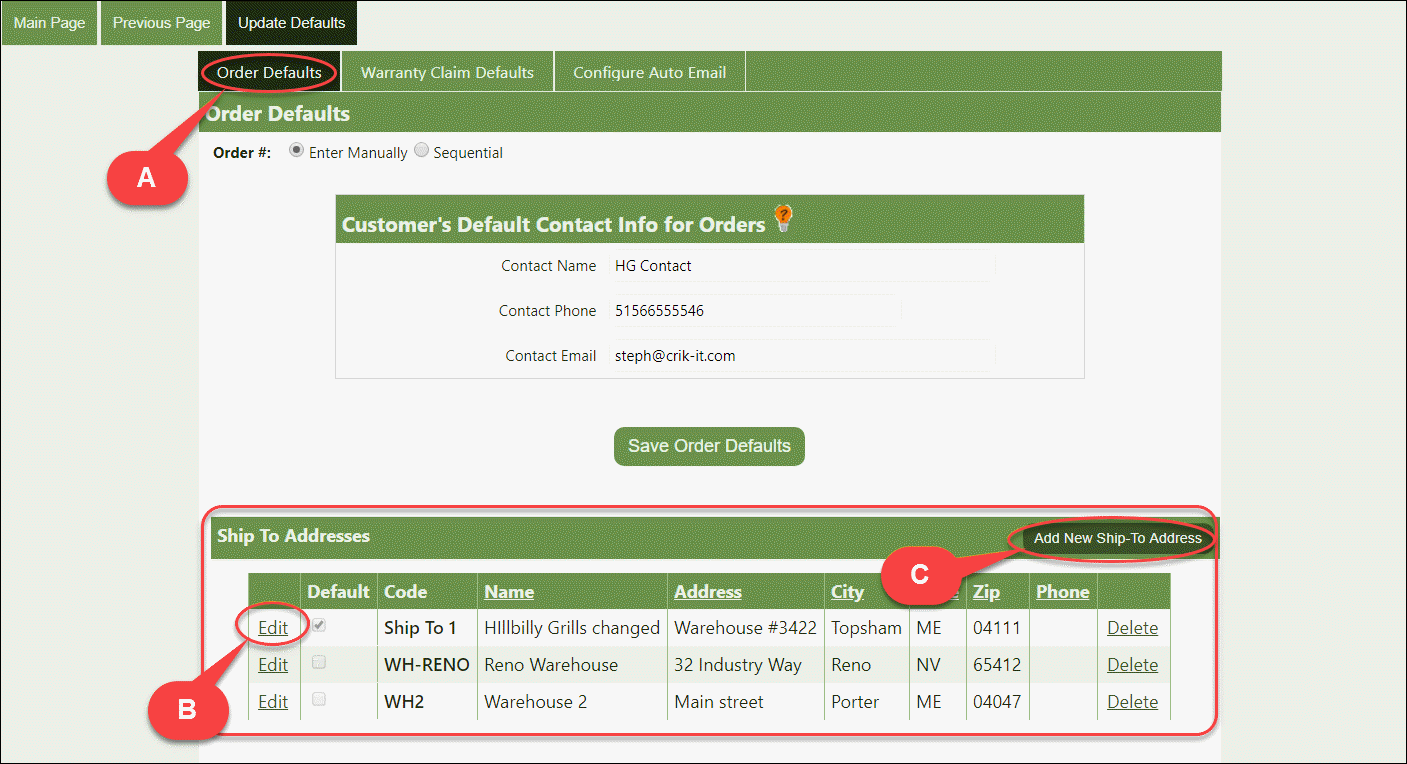
Have a bunch of different Ship-To Addresses you'd like to have set up? Crik-IT can help out! Here's how...
Note: Only Customer Management user types can set up ship-to addresses.
1. Log into Crik-IT using your Customer Management user name (not your staff user name...forget the difference? click here...).
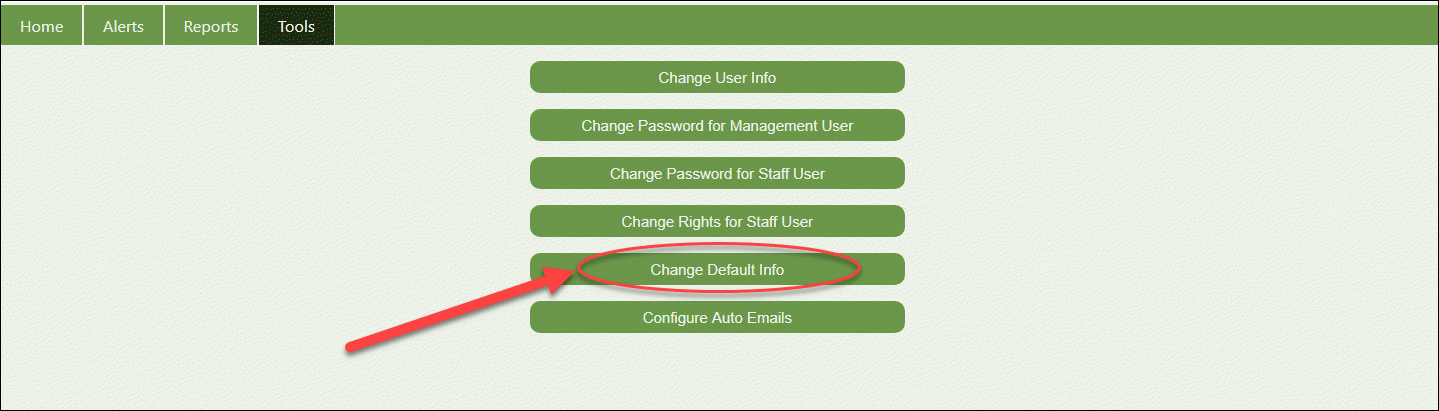
2. From the Crik-IT Main Page, click on the Tools tab. Note: Your screen may look a little different than this, depending on how your vendor has configured Crik-IT.

3. Then click the Change Default Info button.
4. You will be taken to the customer Order Default page. On the bottom part of the screen, you can add, change or delete ship-to addresses. AND, you can select which you would like to use as the default ship-to address.
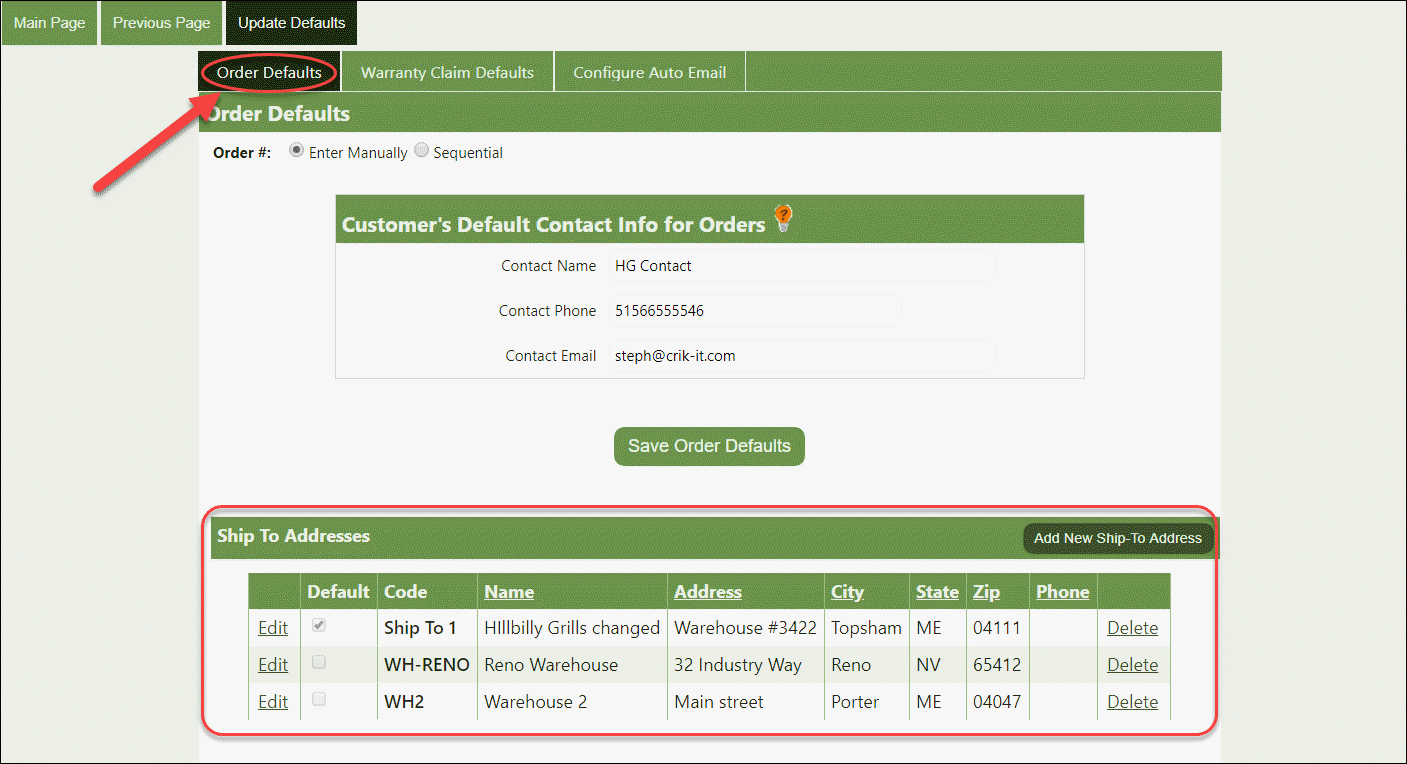
As you can see from the graphic below, you are in
A - Order Defaults and you can go to
B - Edit or
C - Add New Ship-To Address