We can help!
Note: Only Customer Management user types can change a customer's default order information.
* Log into Crik-IT using your Customer Management user name (not your staff user name....forget the difference?...click here.)
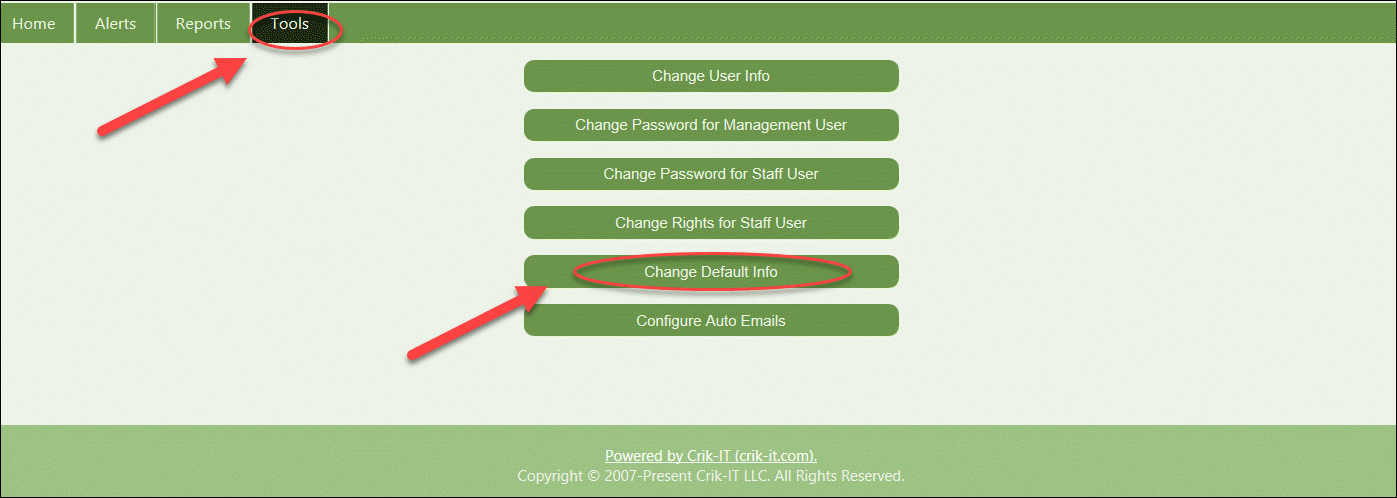
* From the Crik-IT Main Page, click on the Tools tab.
* Then click the "Change Default Info button.
Order Reference Number Settings:
At the top of the Order Defaults section, you have two choices for the Order #:
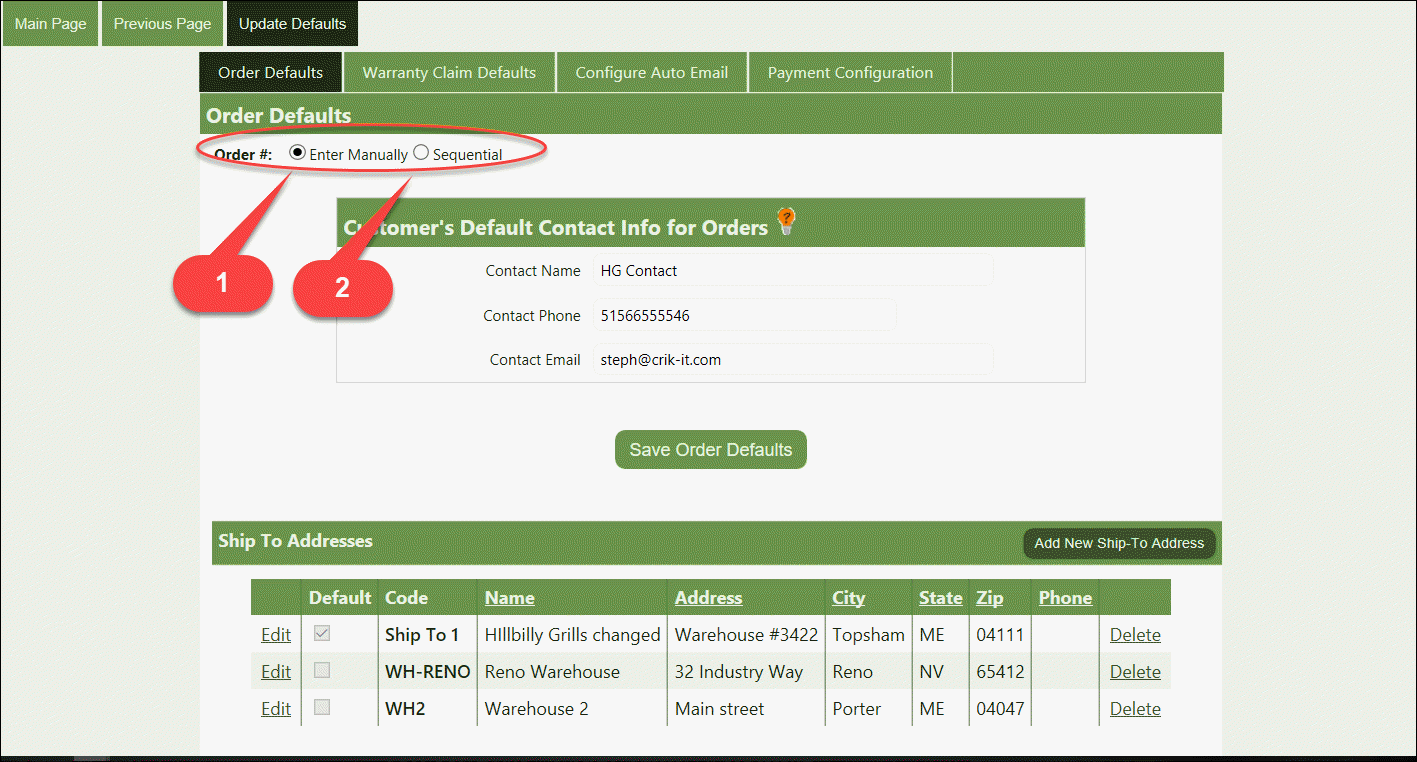
1. Enter Manually: if you choose this option, you will have to enter the order reference number each time you enter an order. Note: Crik-IT requires that the order reference number be unique on an order.
2. Sequential: if you choose this option, Crik-IT will automatically assign a sequential number to a new order. You will be able to enter the starting number in the Next Order # field. Note: this field only appears once you have selected the Sequential option.
**Don't forget to click the Save Info & Return button!
Default Contact Info Settings:
You can set up the information that should appear as the default contact information when entering an order.
-
Contact Name. Note that if you leave this blank, Crik-IT will ignore the default contact phone and contact email on this page, and will instead, use the customer's contact info that comes from your vendor's accounting system.
-
Contact Phone. This will be ignored if the default Contact Name is left blank.
-
Contact Email. This will be ignored if the default Contact Name is left blank. Note that the Contact Email address entered when entering an order will receive a copy of the order when the order is submitted.
**Don't forget to click the Save Info & Return button!
Notes:
-
The Default Contact Info settings described here only apply when a customer or customer staff user is entering the order.
-
If a rep user or in-house user is entering an order on behalf of a customer, the name, phone, and email address associated with that username will be used as the contact info for the order.